
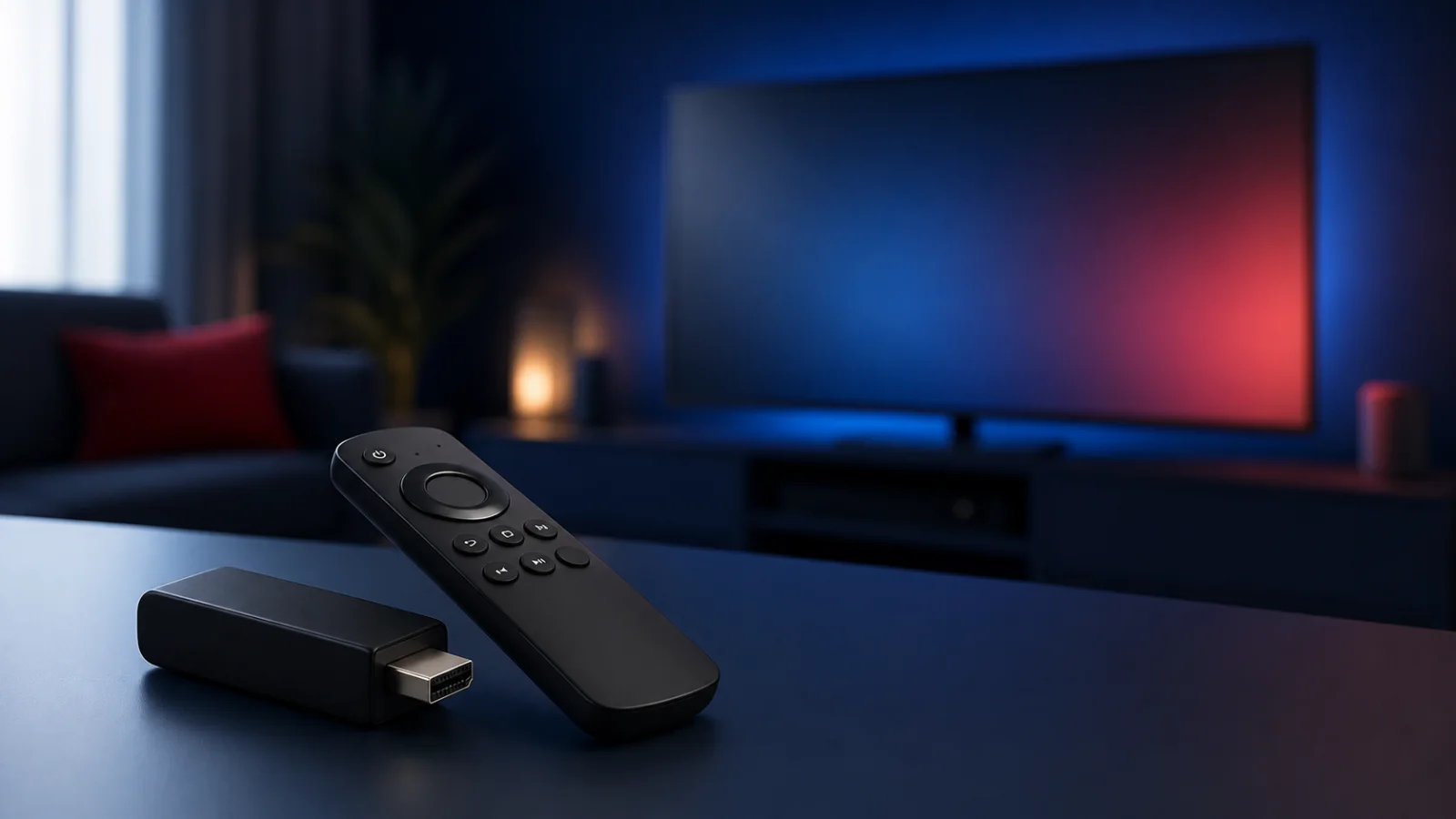
FIRESTICK · FIRESTICK 4K · FIRE TV CUBE · FIRE TV MAX
Install a compatible IPTV player on Fire TV and add authorized provider details. Store availability, picture quality and setup steps depend on the Fire TV model, app, plan and region.
Before you start
Fire TV models can use apps from the Amazon Appstore and, when the verified developer explicitly requires it, a documented sideload workflow. Start with the app and login method in your provider instructions. Avoid random Downloader codes, shortened links and APK mirrors.
Step 1 — Prepare your Fire TV
-
Connect the Fire TV to the internet, install system updates and confirm that enough storage is available.
-
Check the provider instructions for a supported Fire TV player and credential type.
-
Use the Amazon Appstore whenever the recommended app is available there. Leave ADB debugging and unknown-source access disabled unless a verified installation guide specifically requires them.
Step 2 — Use Downloader only when required
-
If the verified app developer documents a Fire TV sideload, use the downloader it currently recommends and confirm the store listing and publisher before installation.
-
Enter the full developer URL from the current documentation. Confirm the domain and app name before downloading; do not rely on an unverified numeric code.
Step 3 — Install and connect a supported player
-
Install the provider-recommended player from its verified store listing or developer page.
-
Open it and select the login type that matches your authorized details.
-
If the app displays a device ID, MAC address or key, enter it only on the verified portal identified by the app developer.
-
Add the authorized M3U URL, Xtream Codes or portal details and save them without sharing a screenshot publicly.
-
Refresh or restart the app and allow the initial data sync to complete.
Step 4 — If support recommends Hot Player
-
Confirm that the current Hot Player listing or verified developer page supports your Fire TV model and region.
-
Install it through the supported method, then follow its on-screen device-ID or login workflow.
-
Use only the upload portal displayed by the installed app or its verified documentation.
Step 5 — If support recommends VU Player Pro
-
Confirm that the current VU Player Pro listing or verified developer page supports your Fire TV model and region.
-
Install the supported version and follow the login method shown in the app.
-
Use only authorized provider details and the portal identified by the installed app.